
Robotics Studio · With Tek
How to make a robot
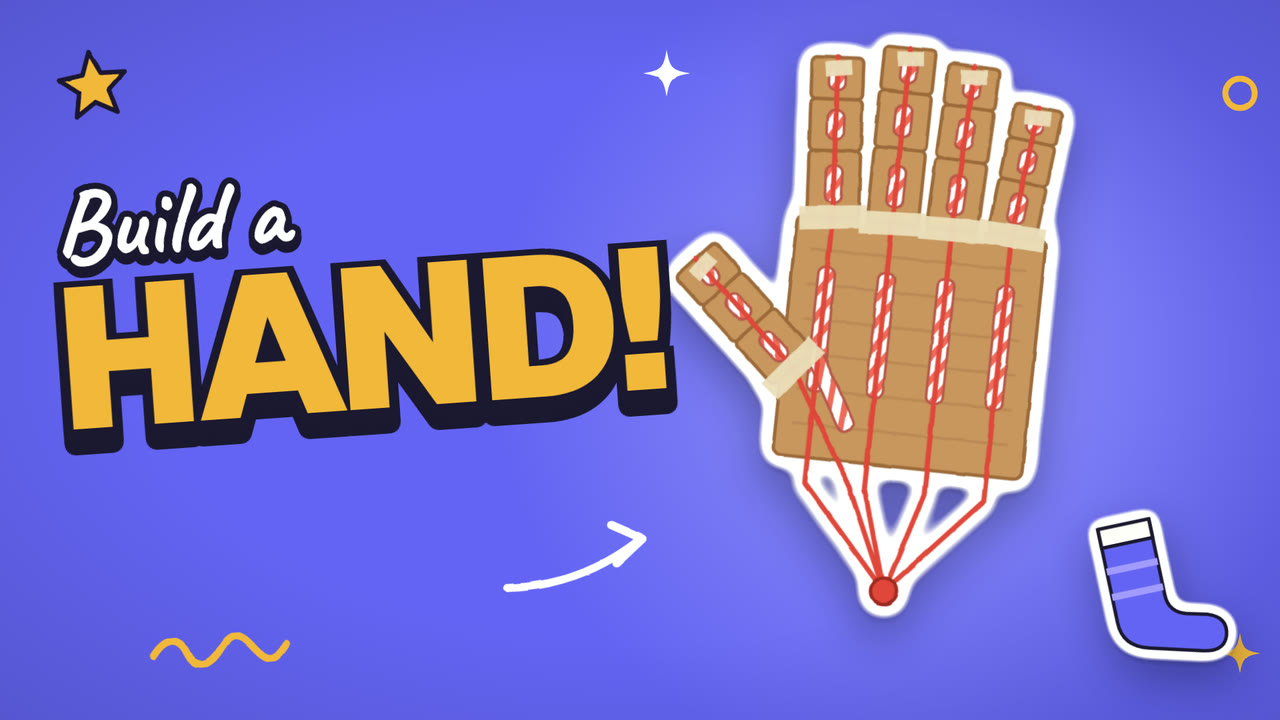
This course teaches your kid how to make a robot hand that really grabs, from cardboard, drinking straws, and string. Tek hosts four short films: how tendons bend fingers, folding cardboard fingers, threading the strings, and making the hand grab. Plan about 4 minutes of films and 45–60 minutes of building, with a grown-up for the cardboard cuts.
How to make a robot is part of Kubrio Learn: short courses that inspire kids to make things. Learn more
Watch all 4 lessons in the appWhat your kid makes
Your kid ends with a cardboard robot hand with five bending fingers that close when the knot is pulled, strong enough to pick up a paper cup or a sock. It's also a first look at how real robot hands and real fingers work.
- Ages
- 6 to 13
- Time
- 4 films, about 4 minutes, then 45–60 minutes of building
- You need
- Cardboard, a few drinking straws, string, tape, pencil and paper, scissors for the straws, and a grown-up for the cardboard
- Host
- Tek
The 4 lessons
Lesson 1. Hands like yours
Tendons work like strings: pull them, and fingers bend.
- Trace your hand on paper
- Draw a line where each finger bends
- Draw the strings down to your wrist
Where: Paper
Lesson 2. Cut and fold the fingers
Three folds in a cardboard strip make a finger that bends.
- Draw a palm and five finger strips, and a grown-up cuts them
- Draw three lines on each strip and fold every line
- Tape four fingers on top of the palm and the thumb on the side
Where: At home
In the app
Lesson 3. Thread the strings
Straw pieces guide each string, and pulling it bends the finger.
- Cut a straw into short pieces and tape one on each part of a finger
- Push a string through the straws and tape it at the fingertip
- Hold the palm and pull the string
Where: At home
In the app
Lesson 4. Make it grab
All five strings in one knot close the whole hand.
- Tie the five strings together in one knot
- Pull the knot and grab something light, like a paper cup or a sock
- Give your robot hand a job and show your family
Where: At home
In the app
Lesson 1 transcript: Hands like yours
Hi, I'm Tek. Today you build a robot hand. A real one, that grabs!
First, look at your own hand. Make a fist. Now open it. How does it do that?
Inside your hand are strong strings called tendons. They run from your fingertips into your arm.
Wiggle your fingers, and touch your arm. Feel it move? Your arm pulls the strings, and your fingers bend!
Robot hands work the same way. Pull a string, and a robot finger bends.
Get your stuff. Cardboard, a few straws, string, tape, and a pencil. A grown-up does the sharp cutting.
Your turn. Trace your hand on paper. Draw a line where each finger bends. Draw the strings to your wrist. Then press Next.
Free guides to practise with
Questions parents ask
Is the cutting safe for my kid?
A grown-up cuts all the cardboard, and the films say so. Your kid cuts only drinking straws, which kid scissors handle fine, and does the drawing, folding, taping, and threading.
Do we need a robot kit or batteries?
No. Cardboard, a few straws, string, tape, and a pencil are enough. The hand moves when your kid pulls the strings, the same way tendons move real fingers.
How long does it take?
The four films take about 4 minutes. Building the hand takes about 45–60 minutes, and the folding and threading can be split over two days.